Give Your Agents a Memory
Agent-managed folders, gitignore partitioning, and living check-back files.
What you'll learn
- Create agent-managed notes/goals folders the harness can read and write
- Partition context by globally gitignoring those agent-managed folders
- Track progress with a live, auto-refreshing Markdown side pane as a visual checklist
In a nutshell
This lesson is about giving agents visible, local working memory without mixing that scratch work into production code. John shows a lightweight pattern: keep agent-written Markdown plans and notes in `.notes/` and `.goals/`, globally ignore those folders in Git, steer plans with numbered-and-lettered options, and use an auto-refreshing Markdown pane as a visual progress view while agents work.
Key concepts, explained
Agent-managed folders
Use local folders like `.notes/` and `.goals/` inside each project as places where agents can write Markdown plans, notes, and goals. John describes these as agent-managed files and as a way to write plans into files you can resume from later.
Why it matters This keeps agent working context close to the codebase while clearly separating it from the source files you intend to commit.
Global gitignore partitioning
Instead of adding `.notes/` and `.goals/` to every repository's `.gitignore`, John suggests globally ignoring those directories on your machine. That lets the same local agent-memory folders exist across projects without being checked into repos.
Why it matters It creates a machine-level boundary between private local agent scratch work and shared source control.
Plan-first goal grounding
John says he often has the agent create a full plan document first, then reads it and dictates or types feedback about specific sections. He may use GrillMe only when he is still uncertain after seeing the plan.
Why it matters Reacting to a concrete plan can be faster than answering a long sequence of upfront questions.
Numbered option planning
Ask the agent for a numbered list where each item has options such as A, B, and C, and have the agent explain which option it thinks is best. You can then review the document and respond with precise targets like `5B` or `27D`.
Why it matters It turns a large plan into an editable map, so you can steer the agent precisely without rewriting or quoting long sections.
Live Markdown side panes
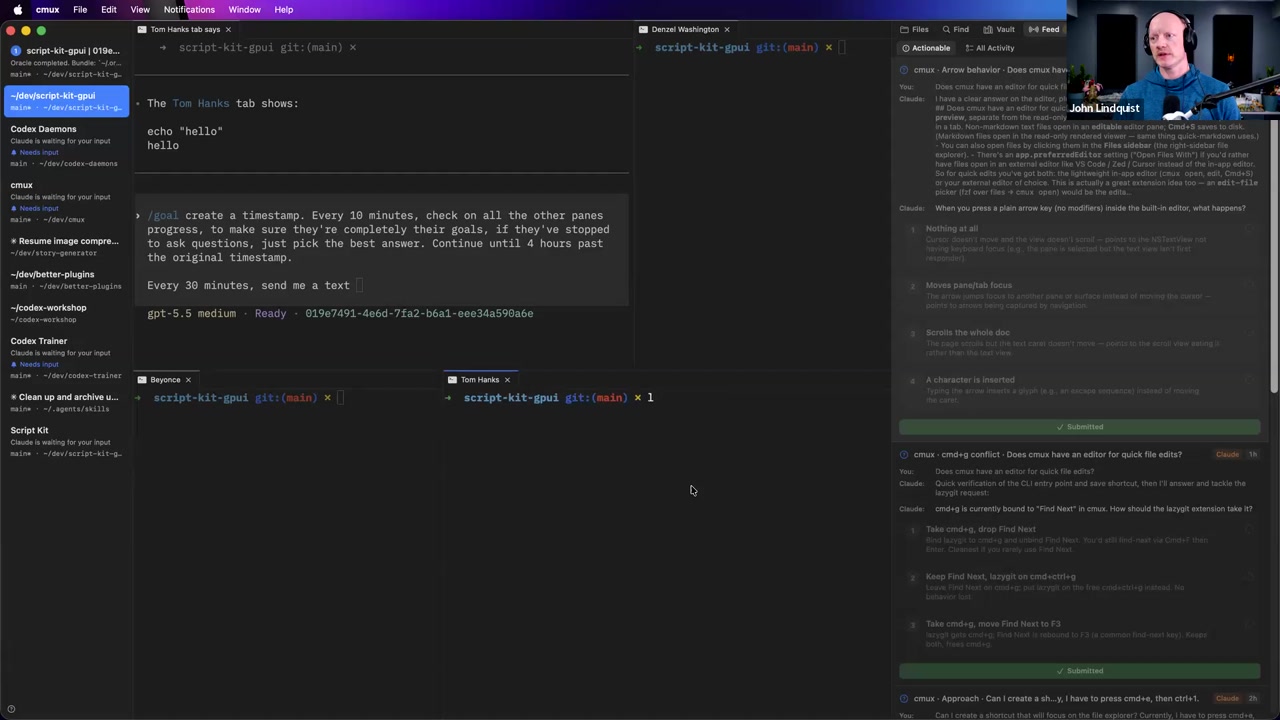
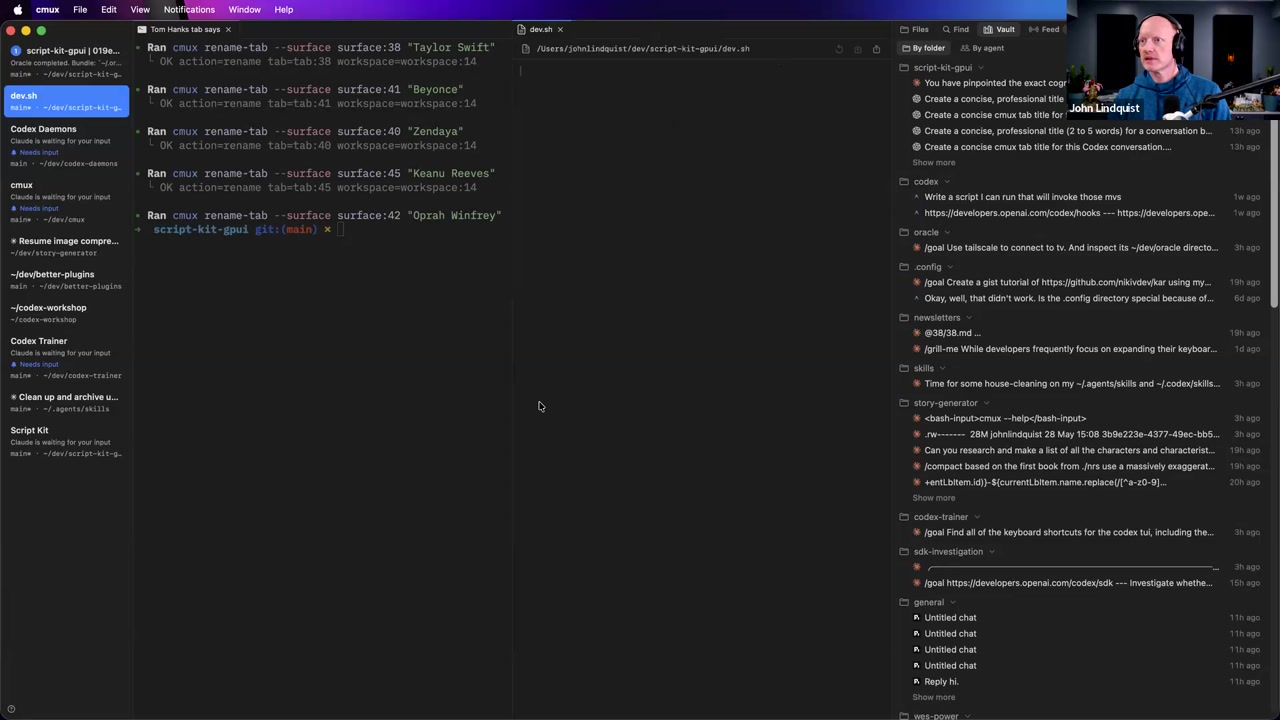
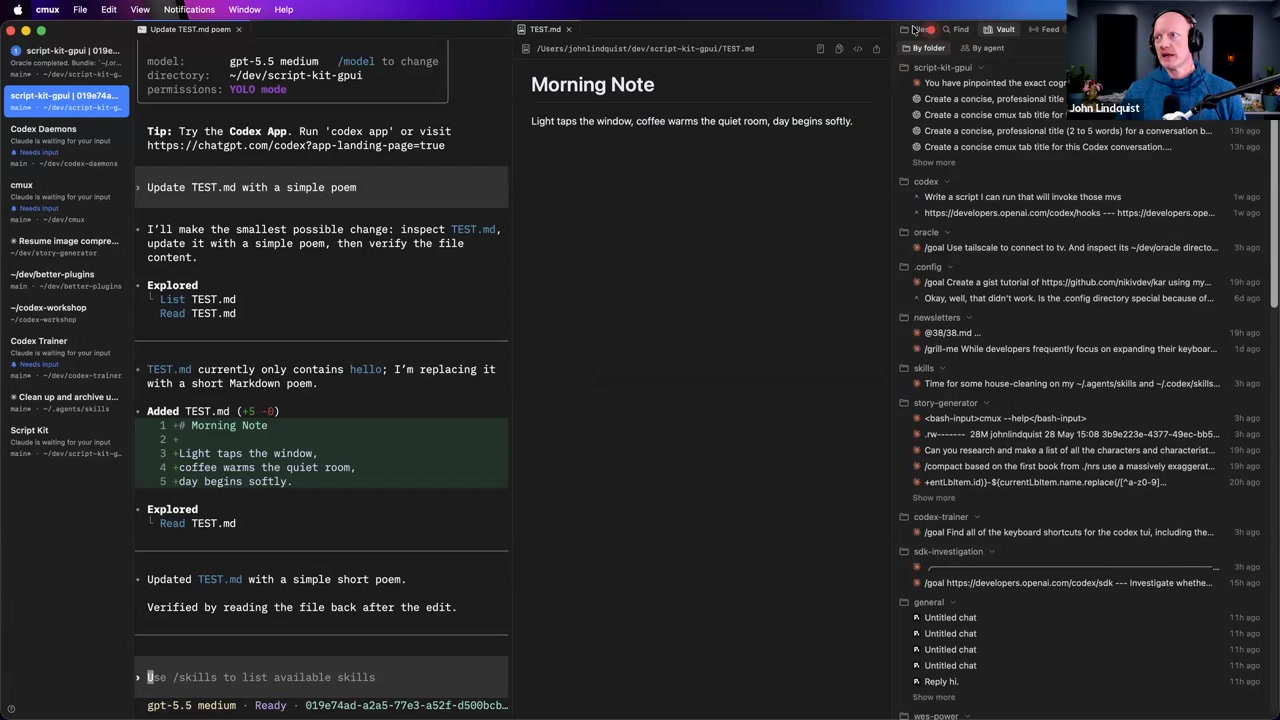
A Markdown file can become a live visual progress view if the agent updates it while working and the client auto-refreshes the rendered pane. John demonstrates this with a simple `test.md` file in CMUX and describes using Markdown as a checklist, progress view, summary, or conversation-history display.
Why it matters It lets you step away from the noisy agent transcript and return to a cleaner status view of what changed or what is happening.
Curated references
Codex Trainer
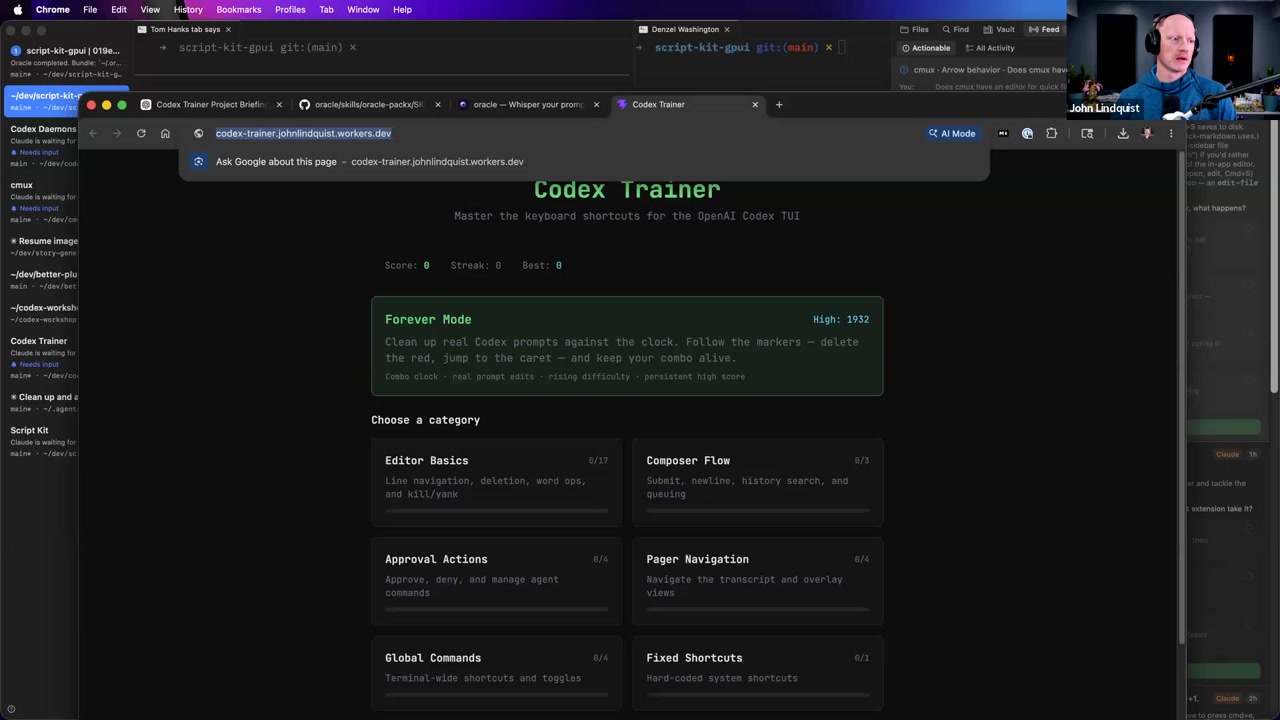
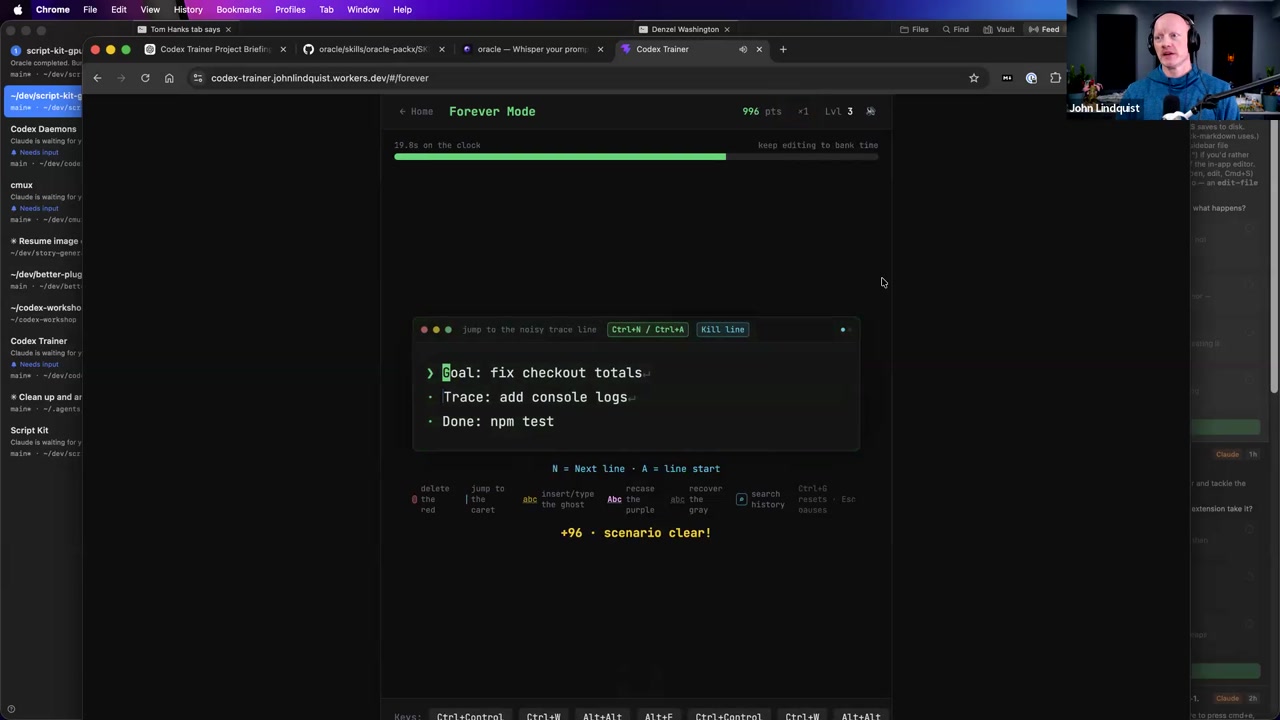
codex-trainer.johnlindquist.workers.dev/A browser-based keyboard shortcut trainer John demonstrated for terminal and editor movement commands such as jumping to line start, deleting words, deleting lines, and yanking lines.
Reach for it when Use it when terminal text editing feels slow or you feel stuck navigating text in command prompts; John specifically pointed to Editor Basics Forever Mode as the part he had worked on most.
CMUX Extensions
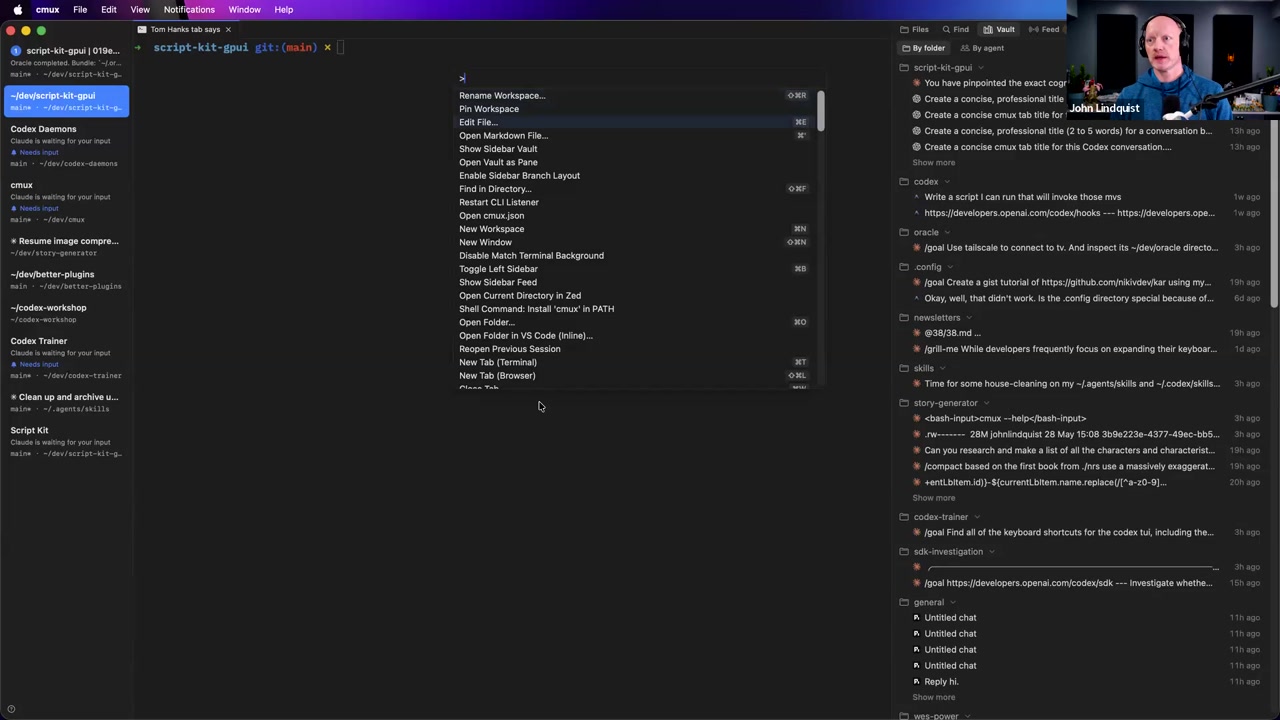
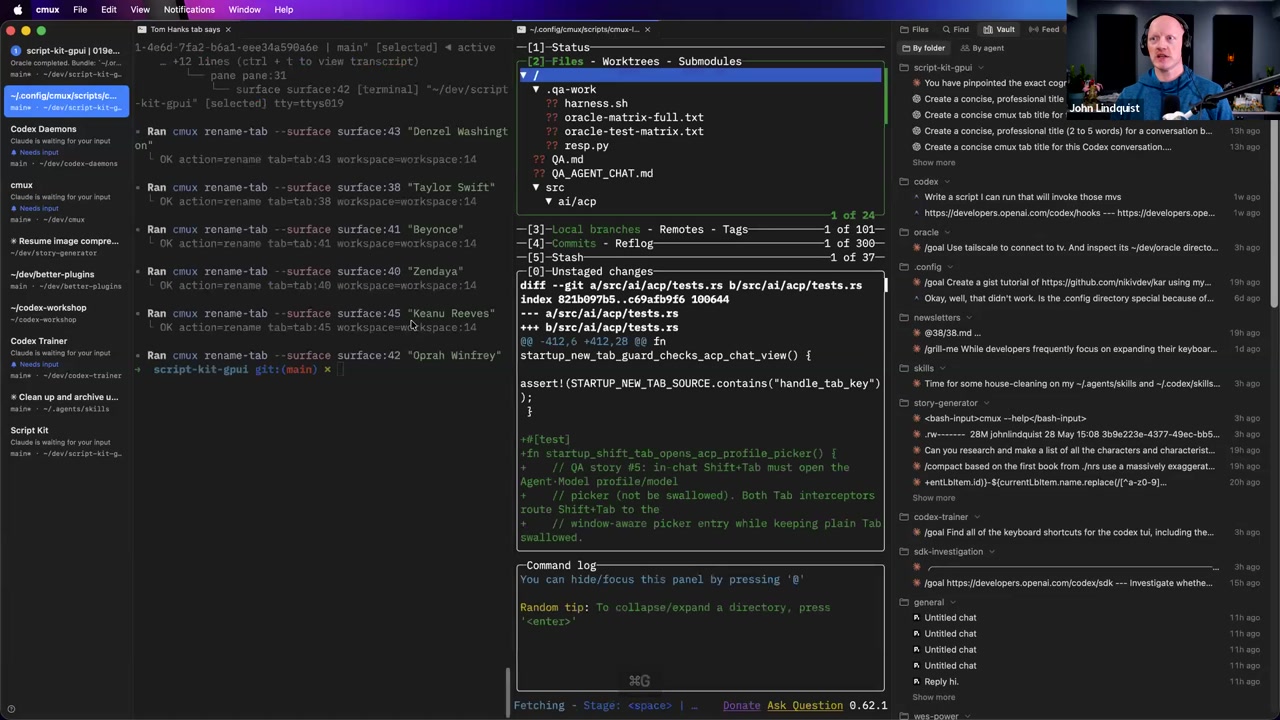
github.com/johnlindquist/cmux-extensionsJohn's public repository for CMUX extension examples, including file editing panes, Quick Markdown viewing, and launching tools such as LazyGit in a pane.
Reach for it when Use it when you want to inspect or adapt the extension patterns John demonstrated for customizing an agent-first CMUX workspace.
GrillMe skill
www.aihero.dev/skills-grill-meA structured clarification skill mentioned in the goal-grounding Q&A. John said he sometimes uses it after reading a drafted plan, but he did not demonstrate the skill in this section.
Reach for it when Consider it when a drafted plan exposes unresolved questions; do not treat it as the main demonstrated workflow from this lesson.
Git global gitignore
🔍 Git global gitignore core.excludesFile documentationGit's mechanism for applying ignore patterns across all repositories on your machine.
Reach for it when Use it when you want local-only folders like `.notes/` and `.goals/` to stay out of every repo by default.
Recommendations & best practices
- Create `.notes/` and `.goals/` in active projects for agent-written Markdown plans, notes, and goals, but treat them as local working files rather than source files.
- Add `.notes/` and `.goals/` to your global Git ignore so the pattern works across projects without changing every repo's shared `.gitignore`.
- Have the agent create a complete plan you can read before implementation, then dictate or type feedback against the plan.
- Ask agents for numbered plans with lettered alternatives when the output will need review, because `5B` is easier to steer than “that section in the middle.”
- Do the high-judgment planning pass when your energy is best, then use shorter prompts later to coordinate agents against the plan.
- Use an auto-refreshing Markdown file as a sidecar checklist, progress view, or summary while an agent works.
- Keep a file explorer or Git view visible when possible so you can notice unexpected file changes before they become part of the repo.
Make it stick
Practice making agent work visible, local, steerable, and separate from committed code using hidden Markdown folders, numbered plans, and a live Markdown progress view.
🧩 Quick quiz
1. What is the main purpose of keeping folders like `.notes/` and `.goals/` inside a project?
2. Why prefer a global Git ignore rule for `.notes/` and `.goals/` instead of adding them to every repo's `.gitignore`?
3. A plan from the agent is long and hard to steer. Which instruction best applies the lesson's numbered option planning pattern?
4. What problem does a live Markdown side pane solve during longer agent runs?
✅ Try it yourself
🚀 Challenges
Ignored Memory Folders
EasyCreate `.notes/` and `.goals/` in a test project, add a simple Markdown file inside one of them, and configure your global Git ignore so those folders stay local across repos.
Done when: The folders can exist in the project for agent notes or goals without appearing as files to commit.
Steer a Plan by Coordinates
MediumGive your agent a small feature idea and ask for a numbered implementation plan where each major item includes options A, B, and C. Do not ask for code yet. Review the plan by issuing targeted feedback such as `keep 1A`, `replace 3C`, `merge 5A and 5B`, and `delete 8C`.
Done when: The revised plan reflects your targeted edits without requiring you to rewrite or quote large chunks of the plan.
Live Markdown Progress View
MediumCreate a Markdown tracker file, open it in a Markdown preview or CMUX Quick Markdown pane, and ask the agent to update it with checklist items, progress, or summaries while it works.
Done when: You can understand the task's progress from the Markdown file without rereading the full agent transcript.
💭 Reflect
- Where would local `.notes/` and `.goals/` folders genuinely help your current workflow, and where would they create clutter?
- What kinds of plans, summaries, or goals are worth writing into local Markdown files near the code, and what should stay out of those files?
- How would your review behavior change if every longer agent task had a clean live tracker instead of only a transcript?
Go deeper
- Set up a tiny project template that creates `.notes/`, `.goals/`, and a simple Markdown tracker file, then globally ignores the folders.
- Try a planning prompt that asks for a numbered list with options A, B, and C under each item, then practice steering it with references like `2A`, `6C`, and `9B`.
- Clone the CMUX extensions repo and inspect how the Quick Markdown viewer is wired so you can adapt it to your own tracker files.
- Practice terminal editing in Codex Trainer's Editor Basics Forever Mode until line movement and deletion shortcuts feel automatic.
- Try a CMUX layout with your agent session, a Markdown tracker pane, and a file explorer or Git view visible at the same time.
Moments worth pausing on
Screens captured from this part of the workshop — click any to open full size.